Important: power on the Mudi only at Step 3, once the SIM card is in.
You will need: a Nano-SIM card with an active mobile data plan.
- Kyivstar and Lifecell: SIM cards with a data plan usually activate directly in the Mudi.
- Vodafone: SIM cards first need to be activated in a phone, then inserted into the Mudi.
Charging
Charge the Mudi battery to more than 80% before first use. A full charge takes about 4 hours via USB-C.
Inserting the SIM
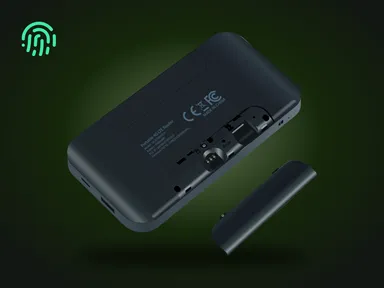
- Remove the back cover. It is held very tightly — the first removal takes some effort.
- Insert the Nano-SIM.
- Put the cover back on.
Powering On
- Press and hold the power button for about 5 seconds.
- The display will show “Booting”.
- Wait — a full boot takes about 3 minutes.
Connecting to Wi-Fi
- On your device, connect to the Wi-Fi network GL-E750-xxx.
- Default password: goodlife
Logging into the Admin Panel
- In a browser (Chrome, Safari, etc.) go to 192.168.8.1
- Choose a language.
- Set a new administrator password → click Apply.
- Wait 30–45 seconds.
Auto Setup
- Click Auto Setup.
- Wait up to 3 minutes while the Mudi initialises the mobile connection.
- Remember that Kyivstar and Lifecell usually work right away, while Vodafone needs to be activated in a phone first.
Done
Your Wi-Fi is set up! To power off the router, press and hold the power button for about 5 seconds.
Support
Telegram: @GemiGuard
Signal: @GemiGuard.47
Next Steps
- Mudi V2 model details — full technical specifications, warranty.
- GemiGuard Mirage for Mudi V2 — IMEI, MAC, BSSID obfuscation, log erasure.
- WireGuard and OpenVPN — how to set up a VPN on the router.
Related: GL.iNet Mudi V2.